 Proudly Canadian-Owned
Unlocking Your PC’s Hidden Power: A Beginner’s Guide to Overclocking vs. Undervolting
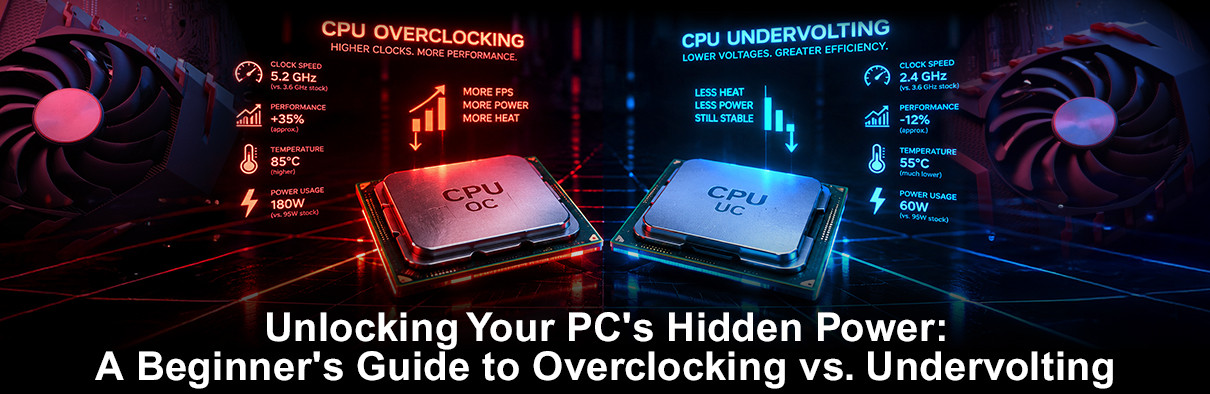
If you’ve been into PC building and the Gaming Community, you’ve most likely heard the terms overclocking and undervolting tossed around like magic spells. They sound intensely technical, but at their core, both are just ways to tweak how your computer’s engine (your CPU or GPU) uses power and speed.
Think of your computer processor like a car engine. Out of the factory, manufacturers set conservative limits so every unit works reliably in any environment. Overclocking and undervolting are two different ways to tune that engine for your specific needs.

What is Overclocking?
Overclocking means pushing a hardware component—like your processor or graphics card—to run at a higher clock speed (more calculations per second) than the manufacturer configured out of the box.
Think of it like pressing the gas pedal past the standard limit to force the car to go faster, and for what purpose, you may ask? To maximize performance, achieve higher frame rates in games, and reduce rendering time.
The Pros & Cons
Pros:
- Free Performance : Squeezes out extra FPS without buying new hardware.
- Extends PC Lifespan : Helps older systems keep up with newer, demanding games.
- Great for Multitasking : Higher CPU speeds also boost productivity in creative software like CAD tools, Premiere Pro, and Adobe.
Cons:
- Higher Temperatures : Speeds require more power, generating significantly more heat.
- Higher Power Consumption : Drains more electricity (or battery life on laptops).
- Stability Risks : Can lead to system crashes or blue screens if pushed too hard.

What is Undervolting?
Undervolting involves reducing the voltage fed to a processor while keeping its speed at factory levels. Because manufacturers give chips extra voltage as a safety net, many processors run perfectly fine on far less power.
You can think of it like tuning the engine to use less fuel while still cruising at the exact same speed. This could lead to lower heat, quieter fans, and better efficiency, especially when it comes to very demanding games and creative work.
The Pros & Cons
Pros:
- Cooler & Quieter : Dramatically lowers temperatures, causing cooling fans to spin slower and quieter.
- Sustained Performance : Prevents thermal throttling (where the PC slows itself down to avoid overheating).
- Lighter Power Draw : Great for laptops, compact builds, or keeping electricity bills down.
Cons:
- Requires Testing : Finding the "sweet spot" takes patience and trial-and-error.
- Potential Instability : Dropping voltage too low will cause games to freeze or crash.
- No Speed Gains : Doesn’t make a slow component inherently faster—just more efficient.
Key Differences at a Glance:
| Feature: | Overclocking | Undervolting |
| Primary Goal | Maximize speed & FPS | Maximize efficiency & lower heat |
| Power Usage: | Increases | Decreases |
| Heat Generated: | Increases | Decreases |
| Best For: | High-end desktop builds with liquid cooling | Laptops, small-form PCs, and quiet builds |
Which One Should You Choose?
At the end of the day, both overclocking and undervolting give you control over your hardware instead of settling for “stock” settings. Neither approach is "better"—it just simply comes down to what your build needs most:
- Choose Overclocking if you have a desktop with a great cooling system, a heavy-duty power supply, and a desire to squeeze out every single frame of performance, regardless of extra heat or power draw.
- Choose Undervolting if you game on a laptop, prefer a whisper-quiet desktop, or want to fix thermal throttling without sacrificing your system's baseline speed.
If you're just getting started, undervolting is the safer and low-risk playground. You get to experiment with system tuning, drop your temperatures significantly, and learn how your hardware behaves under the hood—all without pushing your components past their safety limits.
Take it slow, test for stability after every small adjustment, and enjoy getting more efficiency out of the gear you already own!
Interested in building your own Gaming rig? Visit Canada Computers here to get offers on our broad range of tech deals and peripherals!
Frequently Asked Questions
- Q1. Is undervolting better than overclocking for gaming laptops?
- A: Yes. Laptops have limited cooling space, making heat the primary bottleneck to performance. Overclocking increases heat and causes thermal throttling—where the system slows itself down to prevent damage. Undervolting lowers temperatures while maintaining performance, keeping frame rates stable without loud fan noise or overheating.
- Q2. Does undervolting or overclocking void your CPU or GPU warranty?
- A: Overclocking–especially when you increase voltage—can void warranties if it leads to hardware damage caused by excess heat or electrical stress. Undervolting rarely voids warranties because it reduces voltage and heat, lowering the risk of hardware damage. However, always check specific terms from manufacturers like Intel, AMD, or NVIDIA.
- Q3. Can undervolting permanently damage a graphics card or processor?
- A: No. Undervolting reduces the electrical power supplied to a component, which cannot cause physical damage. Dropping the voltage too low will simply cause a temporary game crash or system reboot. Once you restart and adjust the voltage back to a stable level, the hardware will operate normally.
- Q4. Can you combine overclocking and undervolting on the same PC?
- A: Yes, this is an advanced tuning method known as "undervolt-overclocking." By finding the minimum stable voltage required for a specific clock speed, you can increase your component's speed above stock levels while using less power than factory settings.